

When you open a request from the Inbox, the Request Detail page presents matched experts in a ranked, actionable format alongside the case details. This page explains how to read and interact with those results.
Page layout
The Request Detail page (/inbox/[id]) uses a two-column layout:
Left column — Request header, AI summary, and case details
Right column — Expert list panel with matched results
A breadcrumb in the header shows Inbox / [Case ID] with a status badge indicating the request's current state:
Status | Meaning |
|---|---|
Ready | AI processing complete — matched experts are available for review |
Processing | The system is actively analyzing the case and searching for experts |
Needs Review | Missing information or the case requires manual attention before matching can proceed |
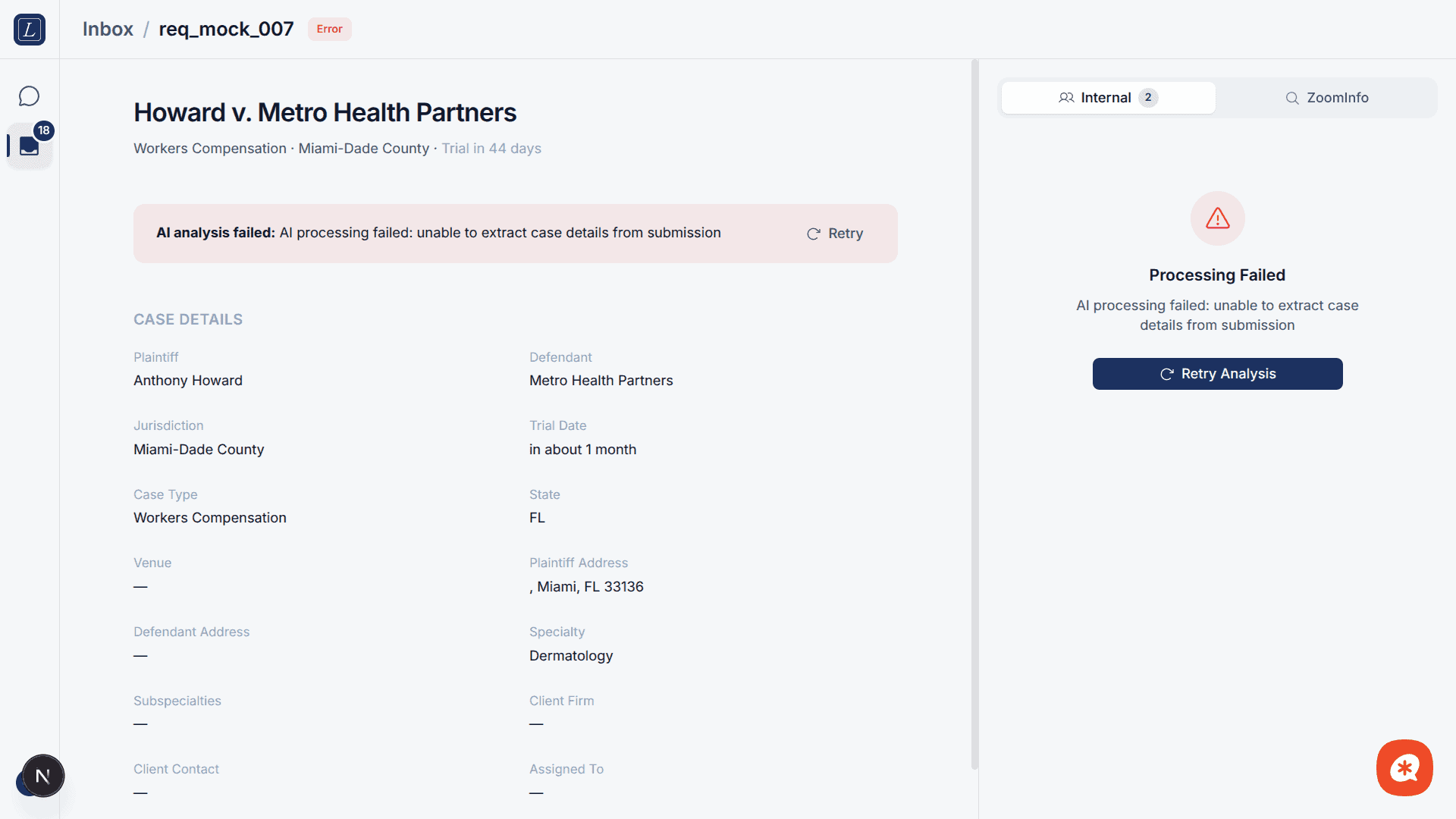
Error | AI processing failed — can be retried |
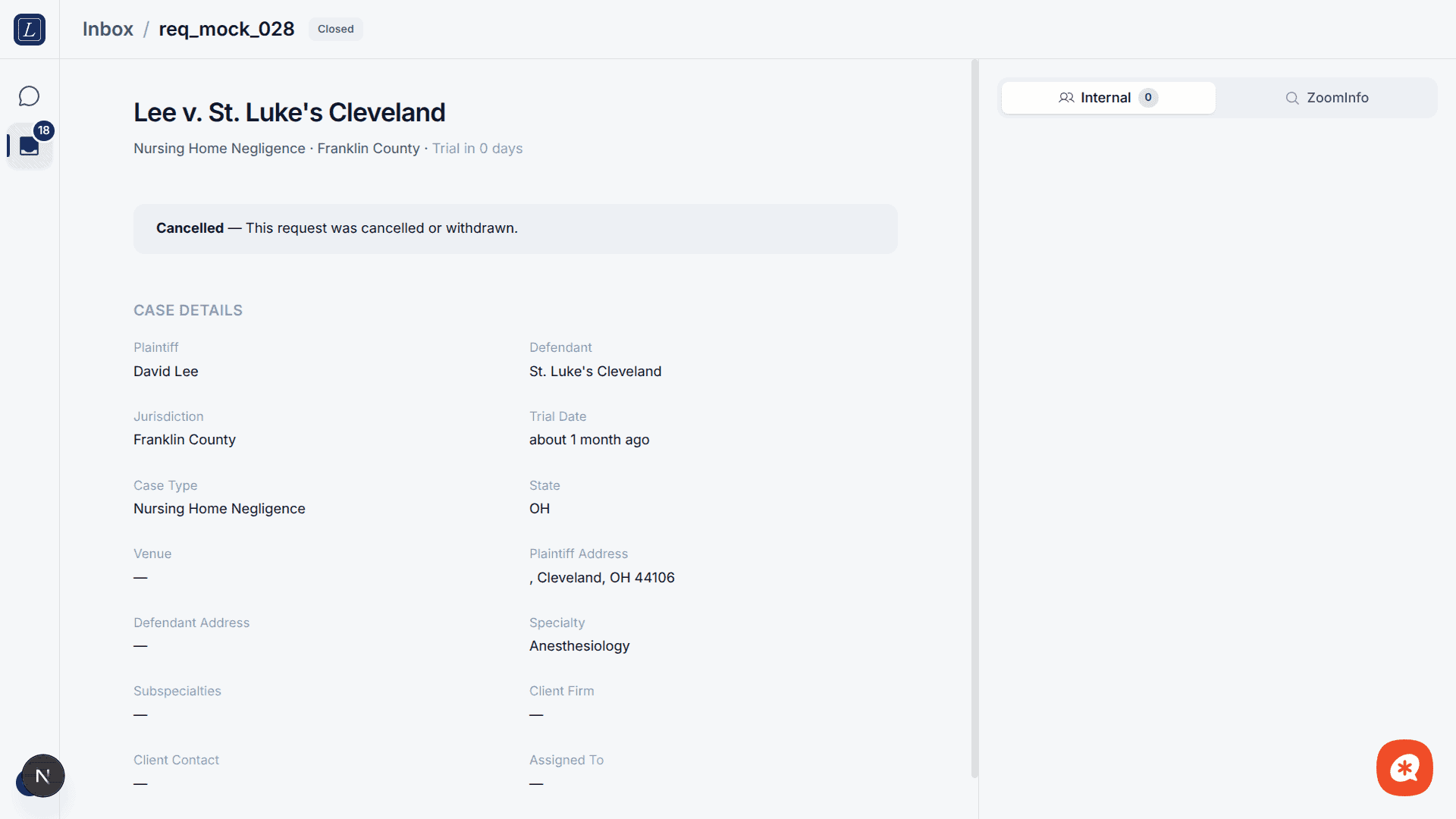
Closed | Request is complete — hover to see the reason |
When a request is in Ready status, a Close Request button appears in the header.
AI Summary
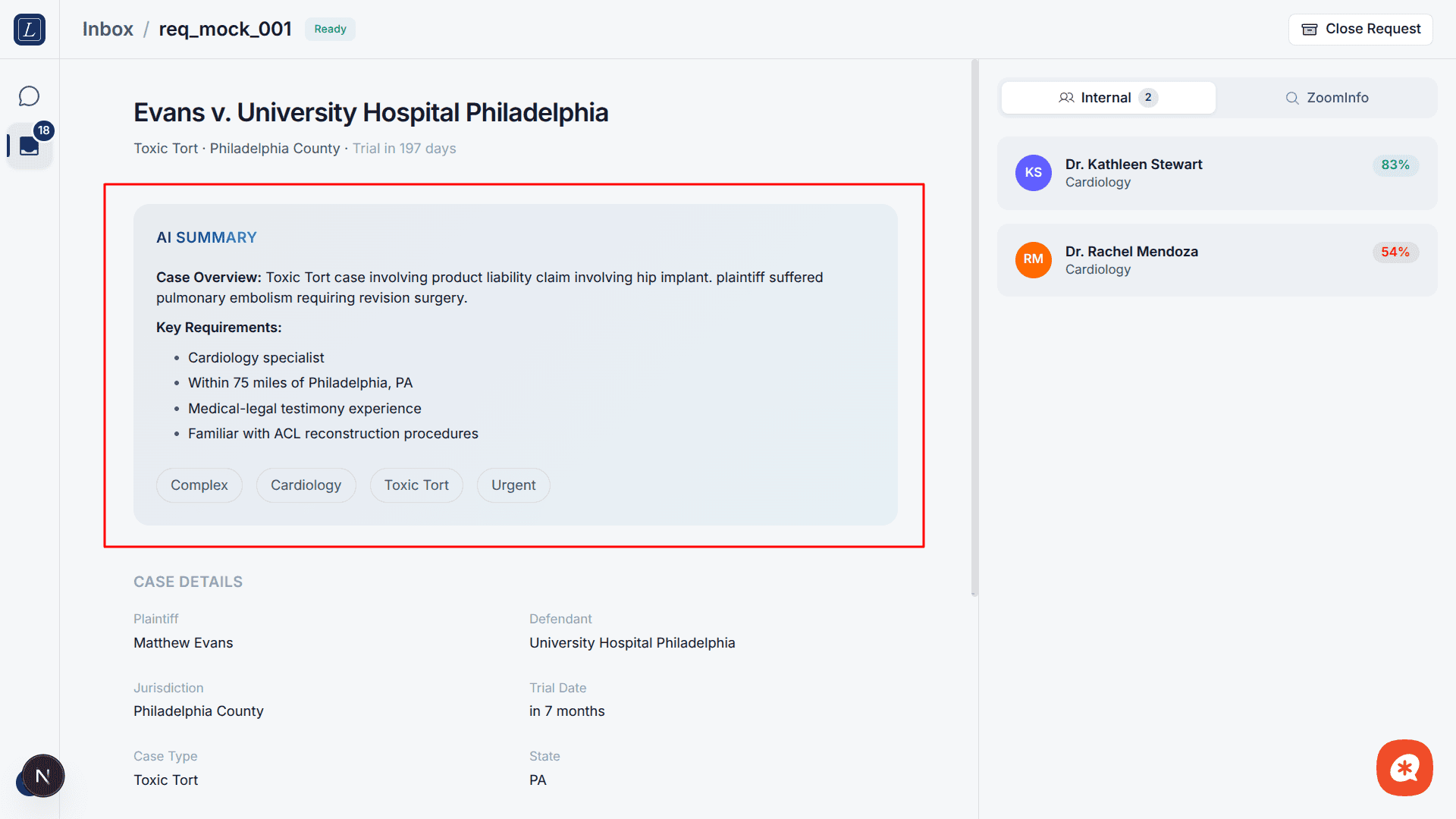
When the request reaches Ready status, the left column shows an AI Summary section containing:
A markdown-formatted analysis of the case requirements
Tags — AI-extracted keywords (e.g., "Orthopedic Spine", "Active Practice") shown as chips below the summary
Case details
Below the AI summary, the Case Details section displays a grid of fields:
Plaintiff and Defendant names
Jurisdiction, State, and Venue
Trial Date (with relative date display and tooltip for exact date)
Case Type and Specialty (with subspecialties)
Plaintiff Address and Defendant Address (copyable)
Client Firm and Client Contact (copyable)
Assigned To and Priority
Created date
Alerts
Context-sensitive alerts appear above the case details:
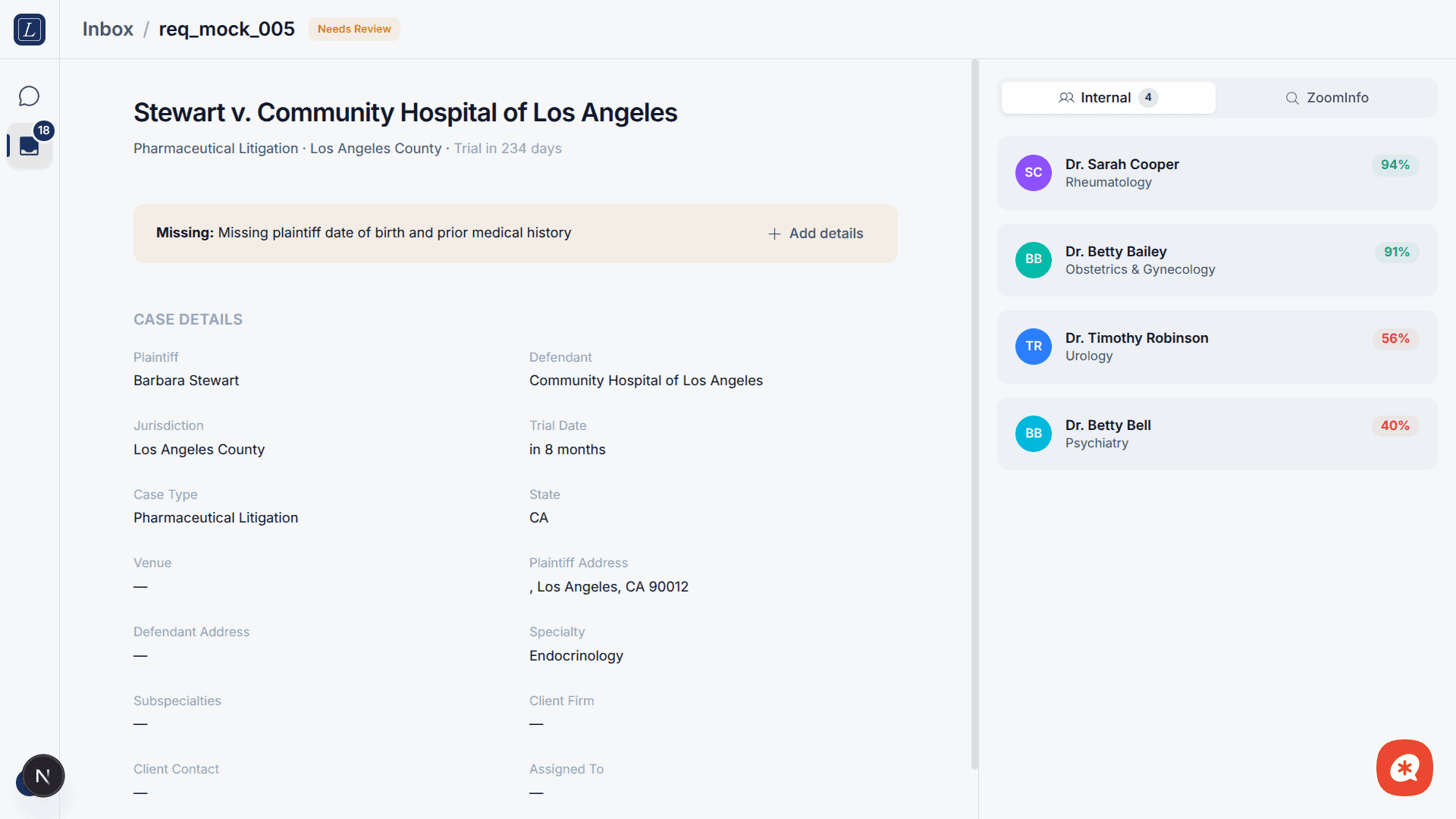
Missing info alert — "Plaintiff address needed for 75-mile verification" with an Add details button that opens a dialog
Processing error alert — "AI analysis failed" with a Retry button
Closed banner — Shows the outcome: "Opportunity Created — Expert selected: [Name]. Synced to Salesforce." or "No suitable expert found" or "Request was cancelled"
The Expert List Panel
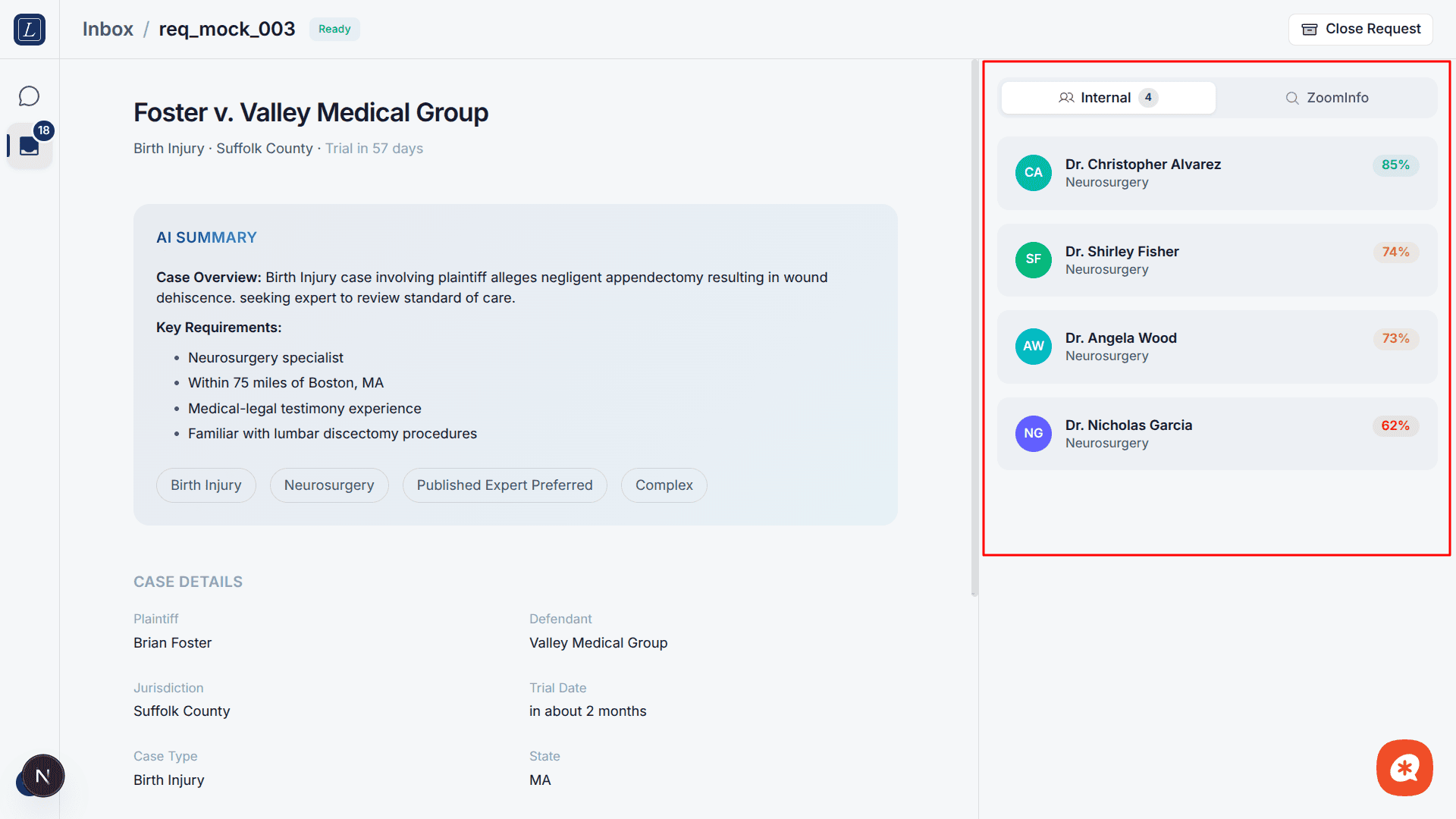
The right column shows matched experts with two tabs:
Internal tab
Displays your network's matched experts, sorted by match score (highest first). Each expert card shows:
Name with colored avatar
Specialty
Distance from plaintiff (in miles)
Match score as a percentage badge, color-coded:
Green — high match (80–100%)
Yellow — medium match (65–79%)
Red — low match (0–64%)
The tab header shows the count of matched experts.
ZoomInfo tab
A placeholder for external expert discovery via ZoomInfo, featuring AI-powered matching with auto-verified credentials and location matching. This integration is coming soon.
Expert Slide Panel
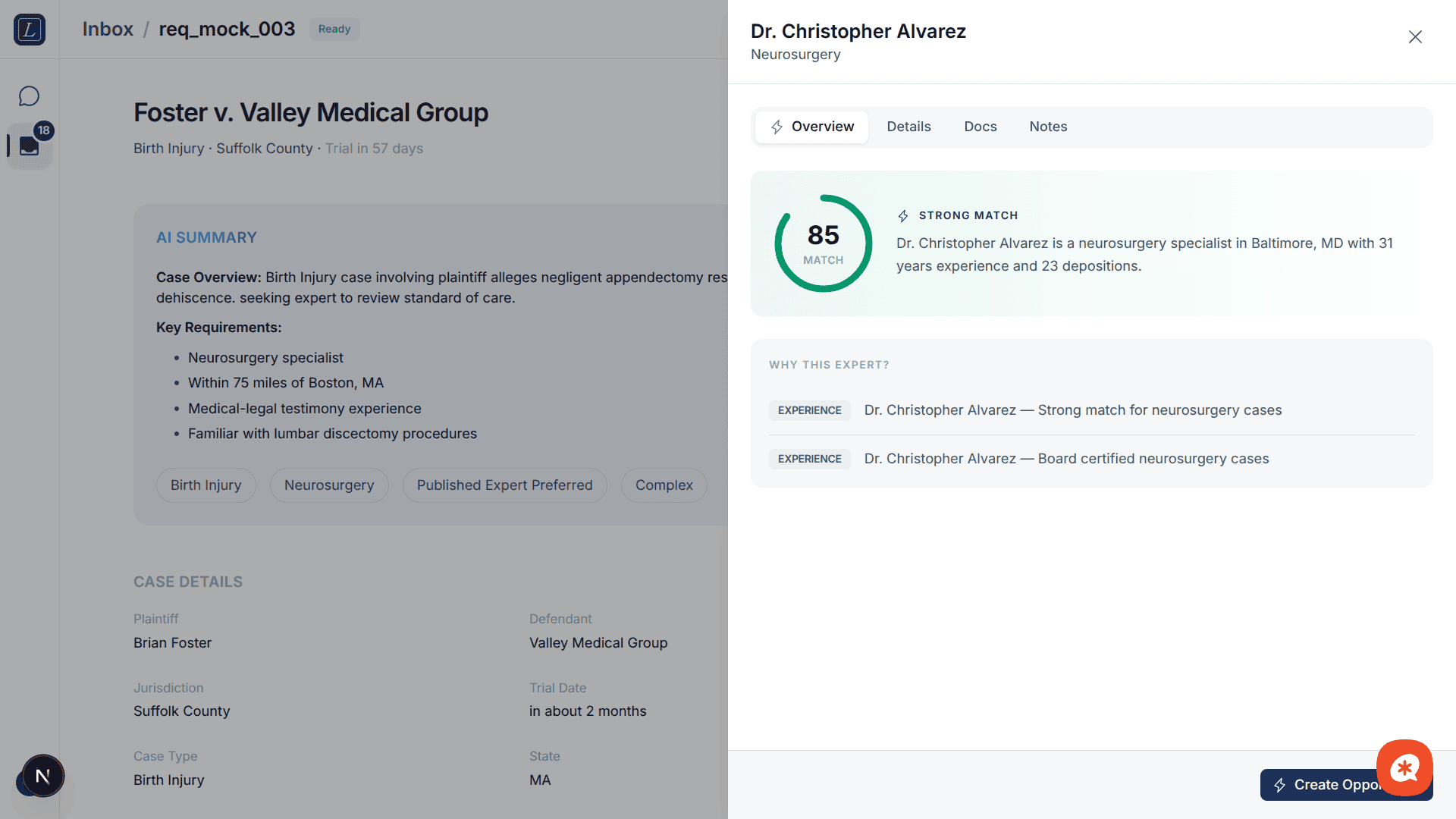
Click any expert card to open the Expert Slide Panel — a slide-over drawer with the expert's full profile. It has four tabs:
Overview tab
The primary view with AI-generated match intelligence:
Match Score Ring — Animated circular progress indicator showing the score (0–100) with the tier label:
AI Match Summary — A 1–2 sentence explanation of why this expert is recommended
Warning Banner — If negative evidence exists (conflicts, distance concerns, side preference mismatches, disqualifying evidence), a red alert shows each issue with categorized titles and source attribution
"Why this expert?" — Positive evidence items, each tagged with a category label (Subspecialty, Location, Experience, Testimony, Exclusivity, Quality, Fees, etc.)
Details tab
Structured expert information in sections:
Location — Service address and distance from plaintiff
Contact — Phone number and email
Experience — Has Testified (yes/no), Does Med/Legal (yes/no), Deposition count, Trial count
Fees — Retainer fee amount and last activity date
Docs tab
Document links sourced from ShareFile:
Curriculum Vitae — Clickable link to PDF if available, otherwise shows "Not uploaded" dimmed
Fee Schedule — Clickable link to PDF if available, otherwise shows "Not uploaded" dimmed
Notes tab
Case manager notes for this expert:
Add — Click the "Add" button to create a new note (title + text)
Edit — Click the three-dot menu on any note to edit
Delete — Click the three-dot menu to delete (with confirmation dialog: "This action cannot be undone")
Notes are persisted per-expert and display creation dates.
Actions from the expert panel
The slide panel footer has a single primary action that changes based on request status:
Request State | Action | What it does |
|---|---|---|
Open (Ready) | Create Opportunity | Selects this expert, closes the request with reason "expert_selected", and syncs to Salesforce as an Opportunity |
Closed | Open in Salesforce | Deep link to the Opportunity record in Salesforce Lightning |
Adding missing information
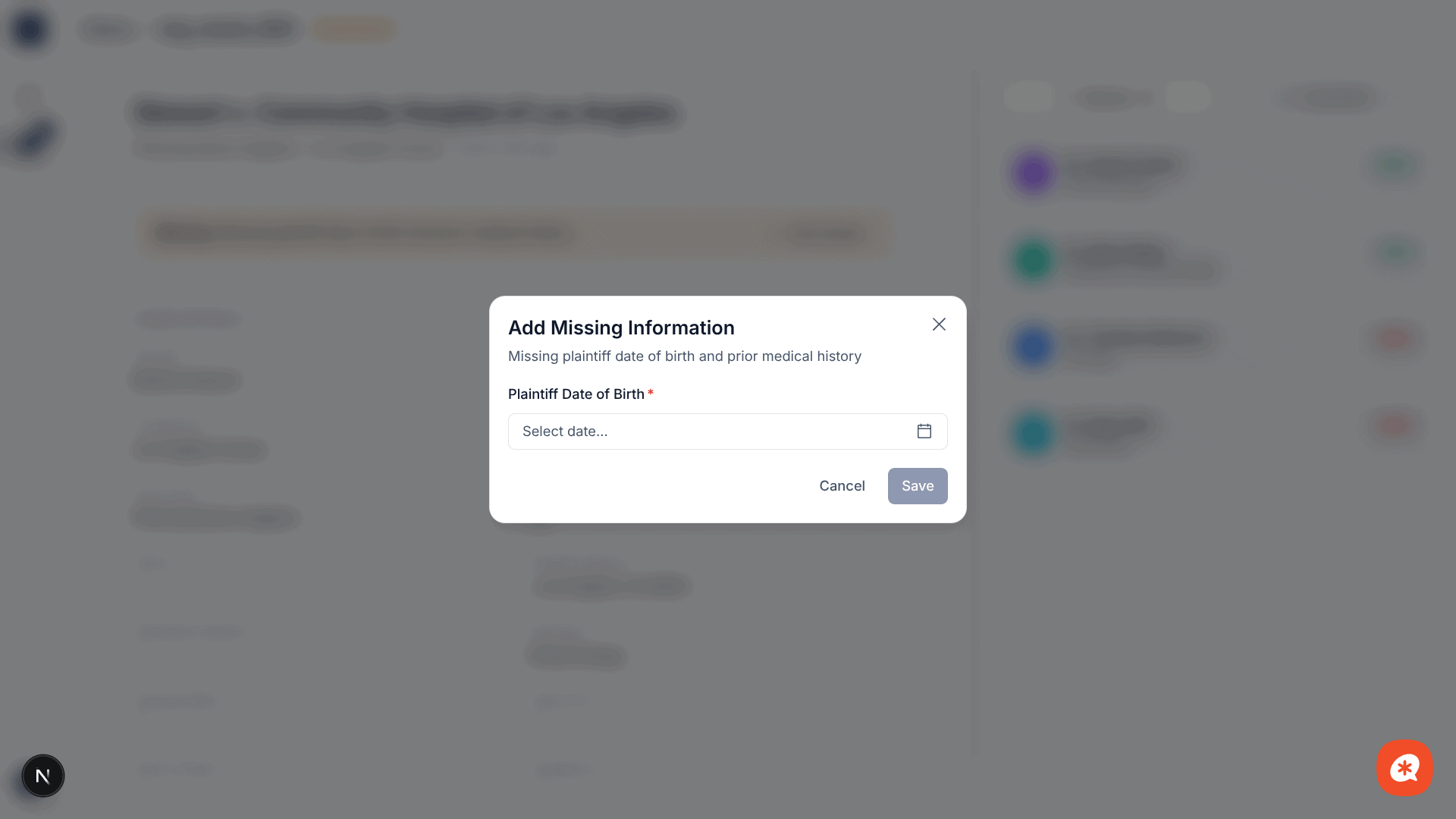
When a request has missing details (e.g., plaintiff address for 75-mile verification), an Add Missing Information dialog lets you fill in:
Plaintiff Street Address, City, State, ZIP Code
Trial Date (via date picker)
After saving, the system automatically triggers expert matching with the updated information.
Alternatively, you can click Run Without Details to proceed with matching using only the available data — though results may be less accurate (experts outside the required distance may appear).
Closing a request
Click Close Request in the header to close a request without selecting an expert. A dialog presents two options:
Option | Description |
|---|---|
No Suitable Expert | No expert found that matches this case |
Cancel Request | Request was cancelled or withdrawn |
Empty results
If no experts match your criteria, the Internal tab shows an empty list. Common fixes:
Broaden the specialty requirements
Provide the plaintiff address for accurate distance matching
Try adding missing details via the dialog
Use the AI Chat to iteratively refine your search criteria