

The Inbox lists all expert witness requests in a table, both those created internally and those submitted by external law firms via shared links. Open it from the sidebar navigation.
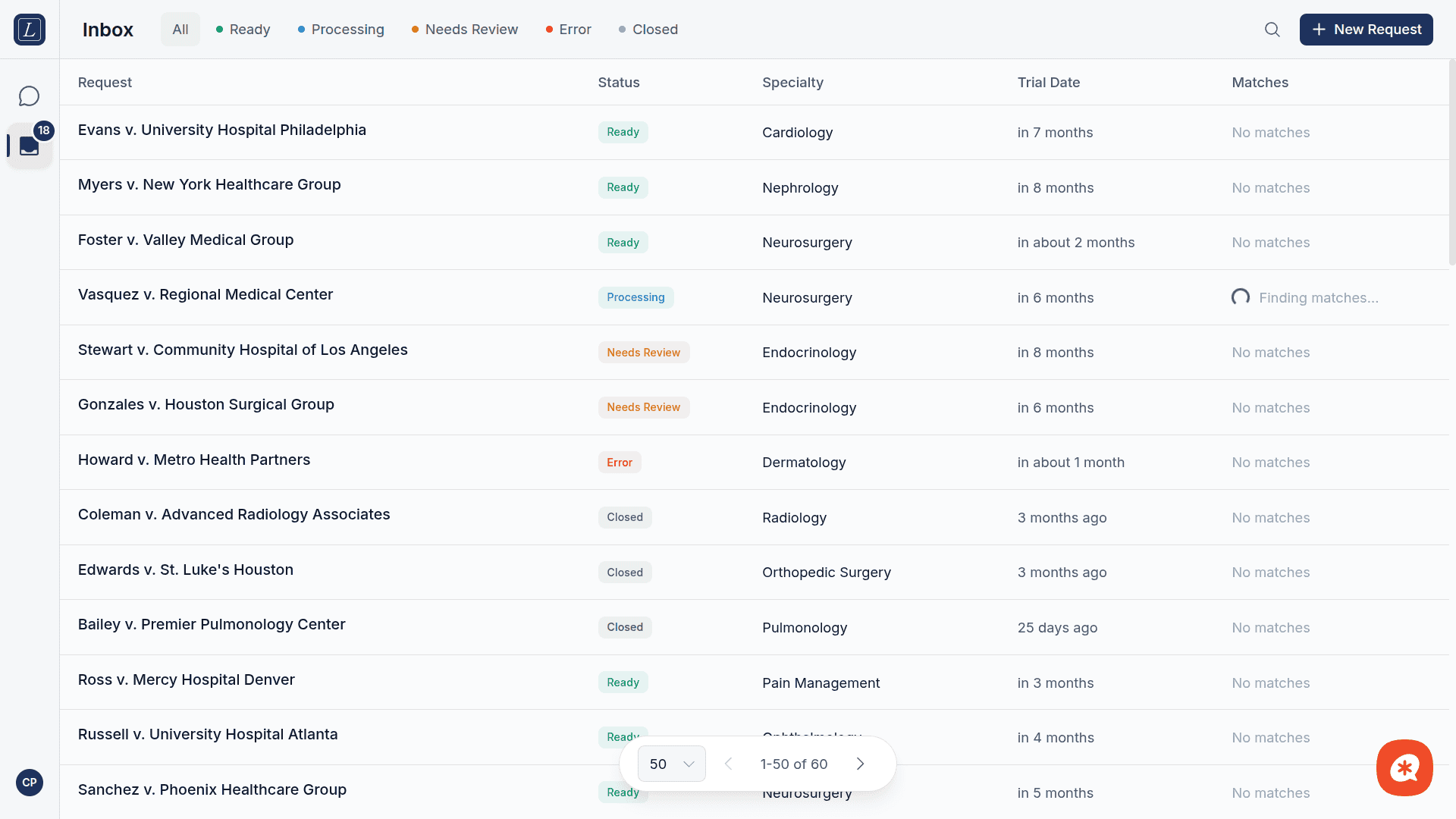
The request table
Each row in the table shows:
Column | What it displays |
|---|---|
Request | Case name (e.g., "Smith v. Metro Hospital") and case ID |
Status | Current lifecycle stage (see below) |
Specialty | The medical specialty needed for the case |
Trial Date | Relative time until trial (e.g., "in 45 days") with exact date on hover |
Matches | Avatar group of matched experts, or "Finding matches..." spinner during processing |
Click any row to open the Request Detail page.
Statuses
Requests move through a defined lifecycle:
Status | Meaning |
|---|---|
Ready | AI processing complete — matched experts are available for review |
Processing | The system is actively analyzing the case and searching for experts |
Needs Review | Missing information or the case requires manual attention before matching can proceed |
Error | AI processing failed — can be retried |
Closed | Request is complete — hover to see the reason |
Closed reasons
When a request is closed, hovering the status badge shows why:
Expert Selected — an expert was chosen and the opportunity synced to Salesforce
No Professionals — no suitable match was found
Cancelled — the request was withdrawn
Filtering and search
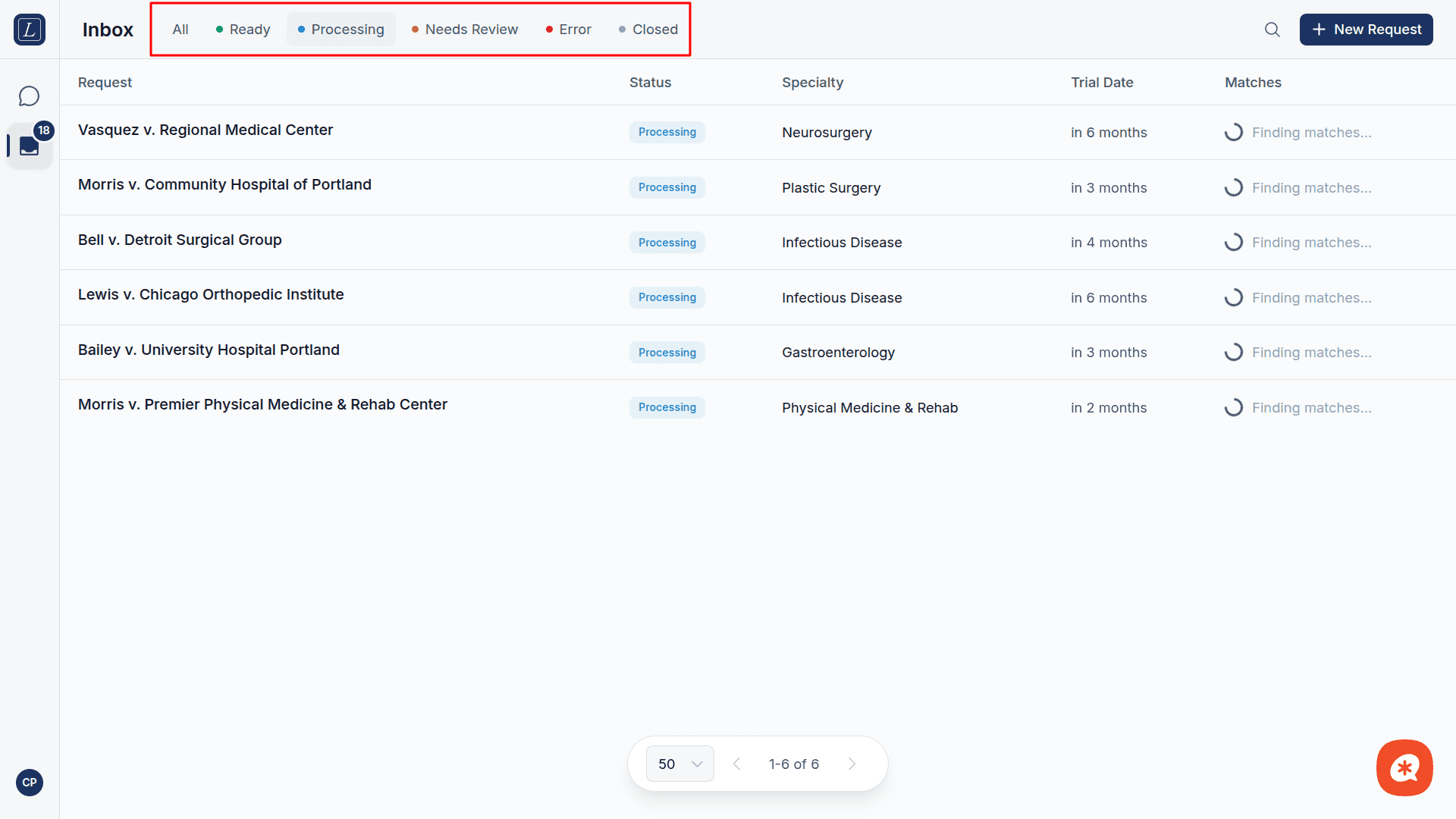
The header bar provides two ways to narrow down your view:
Status tabs — Click All, Ready, Processing, Needs Review, Error, or Closed to filter by status. Each tab shows a colored dot matching its status.
Search — Click the magnifying glass icon to expand a search field. Searches across case names and case IDs.
Results are paginated with a floating control bar at the bottom of the page.
Creating new requests
Click the + New Request button in the top-right corner to choose between two options:
Internal Request
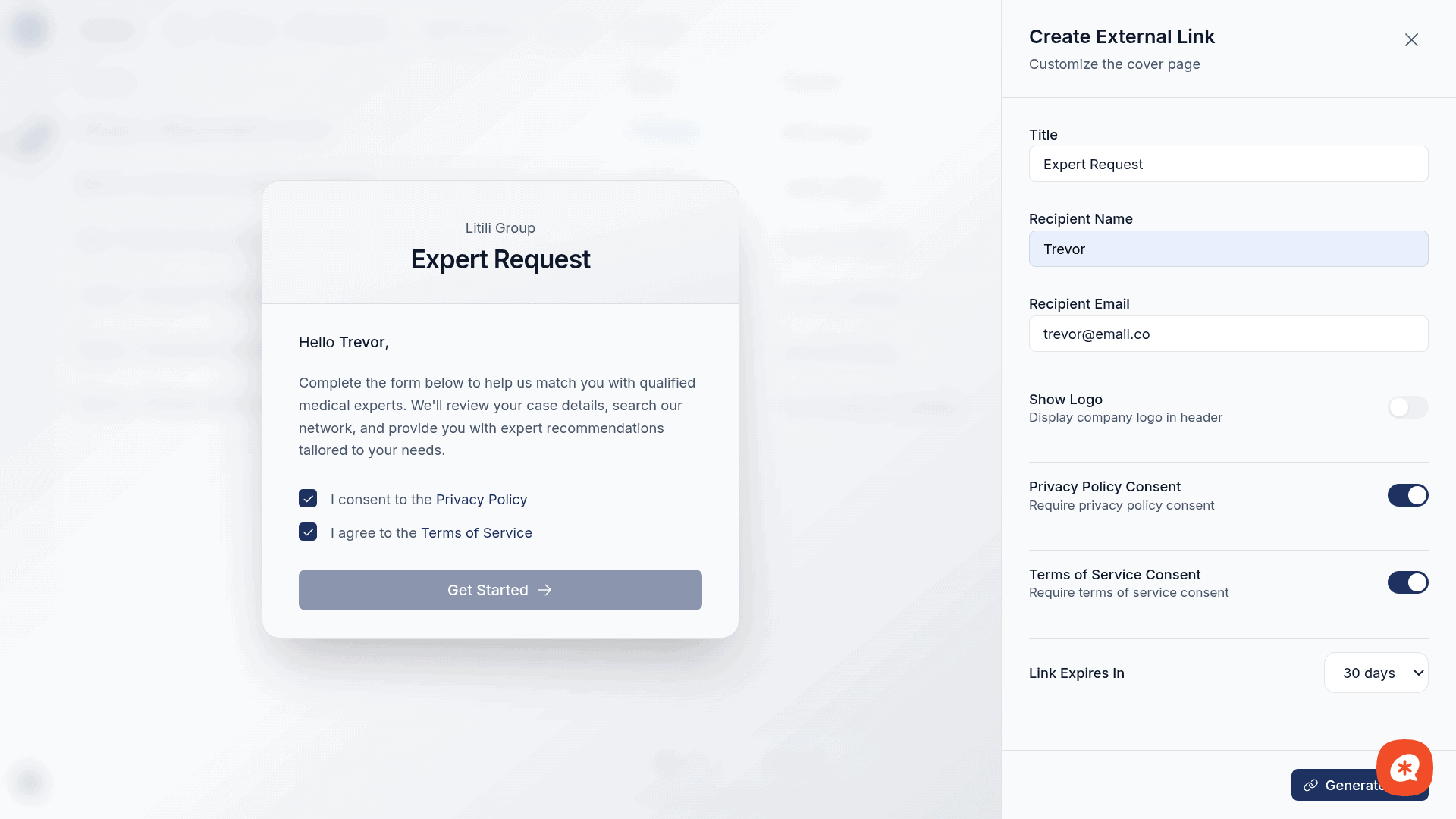
External Link
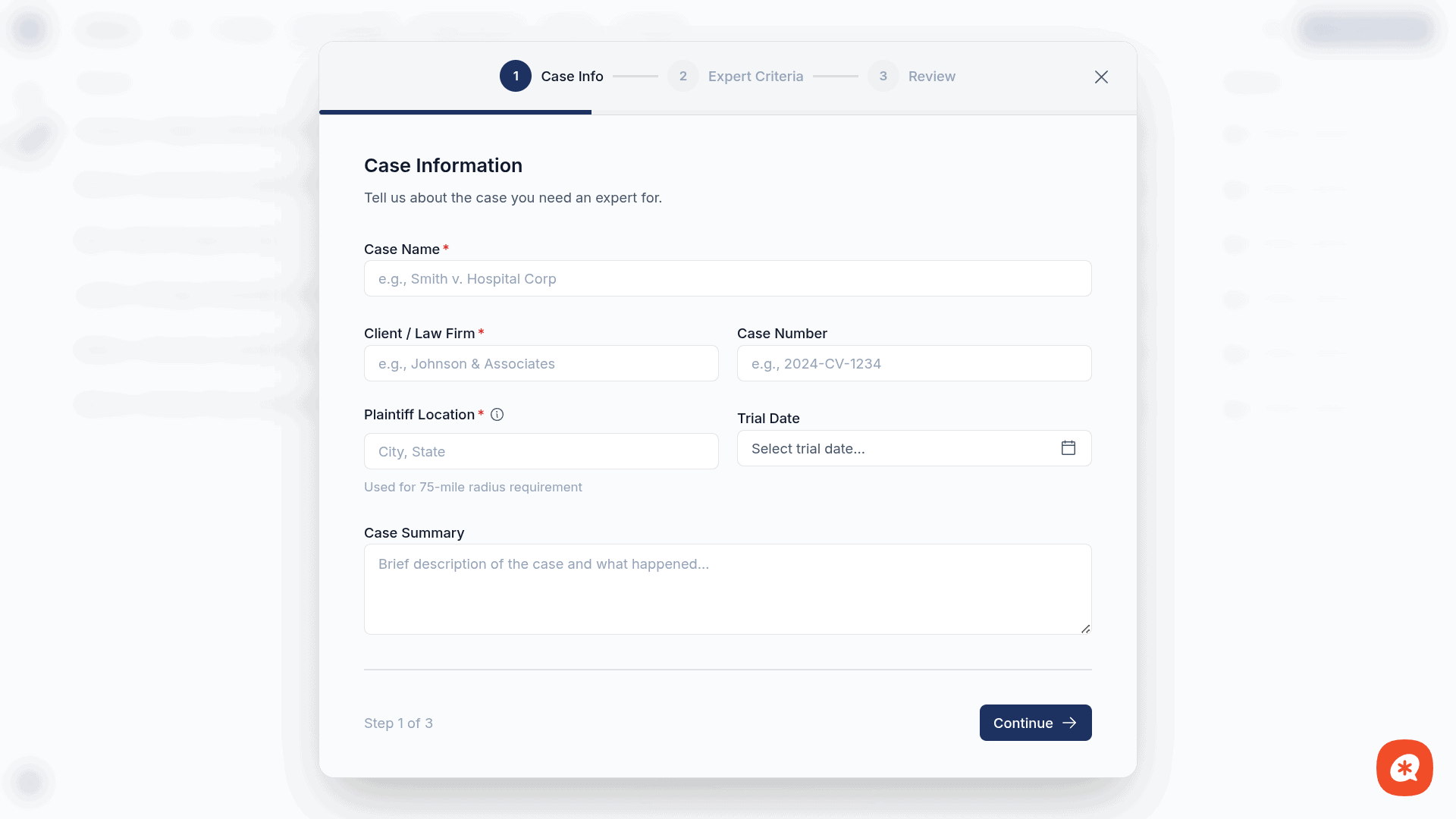
Opens a full-screen form to create a request for your team. Fill in case details (specialty, location, parties, trial date) and the system will process it and find matching experts.
Opens a configuration modal where you can generate a shareable URL to send to a client or external law firm. The modal includes:
Left panel — Live preview of the cover page the recipient will see
Right panel — Settings for title, recipient name/email, logo visibility, privacy/terms consent, and link expiration (1–30 days)
After clicking Generate Link, you can copy the URL or email it directly to the recipient.
Request Detail page
Clicking a request row opens the Request Detail page, a two-column layout with case information on the left and matched experts on the right. For a full walkthrough of the detail page (including the AI summary, case details, expert cards, slide panel, and closing workflows) see Expert Matching UI.