

The AI Chat is a conversational interface that lets you search for experts, check conflicts, pull up profiles, and manage cases using natural language... no forms or menus required.
Getting started
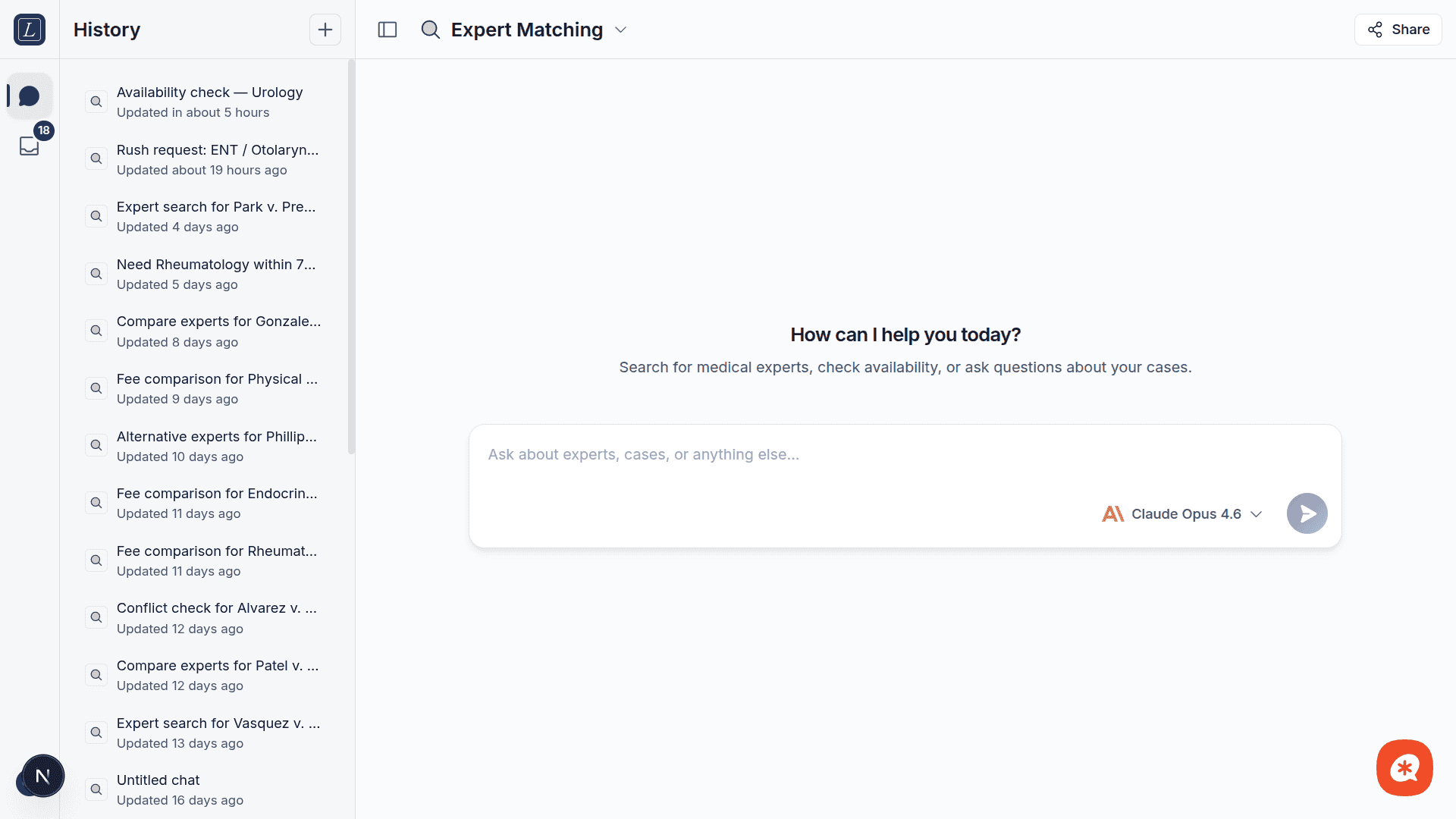
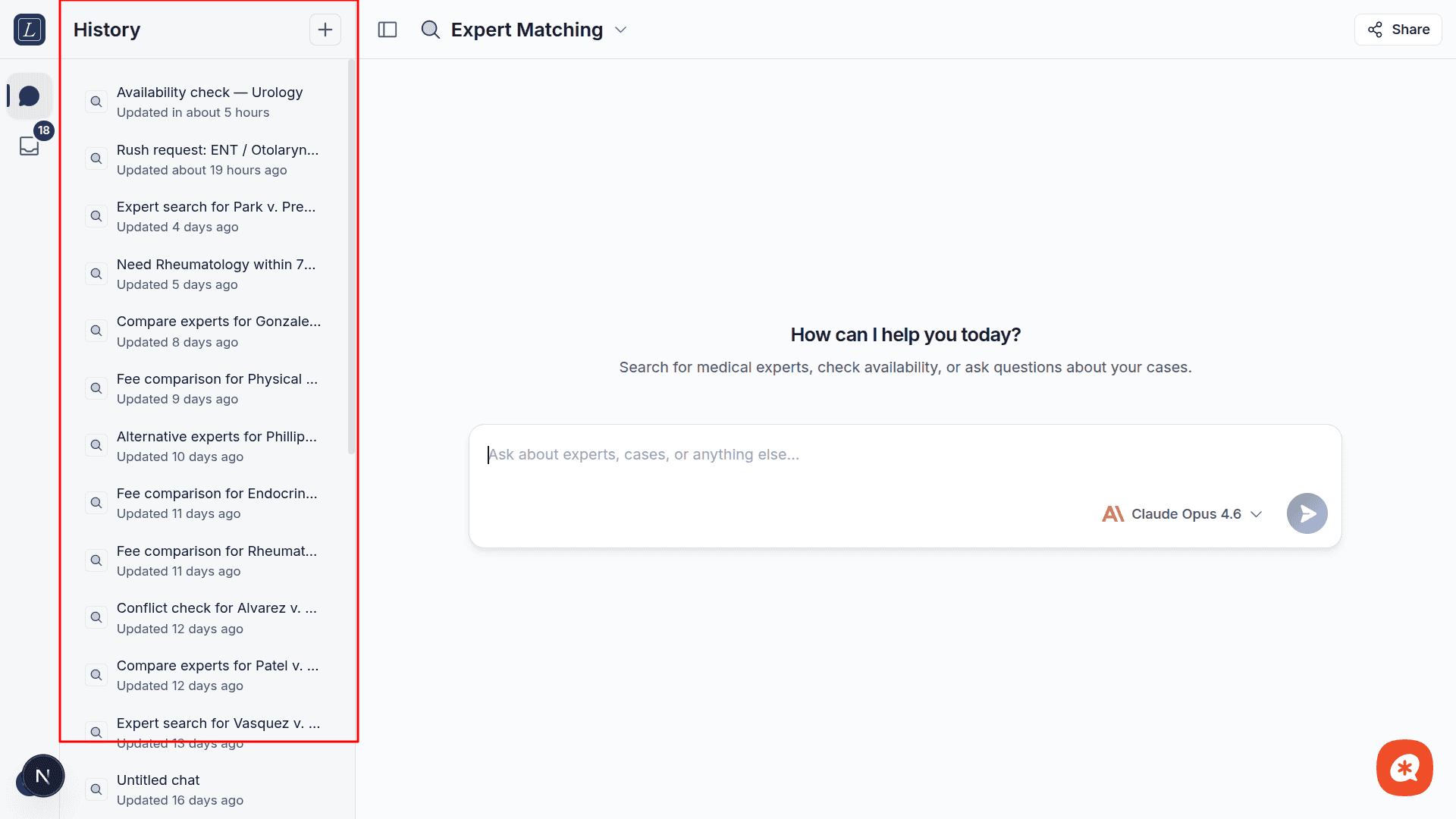
Open Chat from the sidebar. You'll see a message input at the bottom and a conversation history sidebar on the left.
Type your question or request as you would to a knowledgeable colleague. For example:
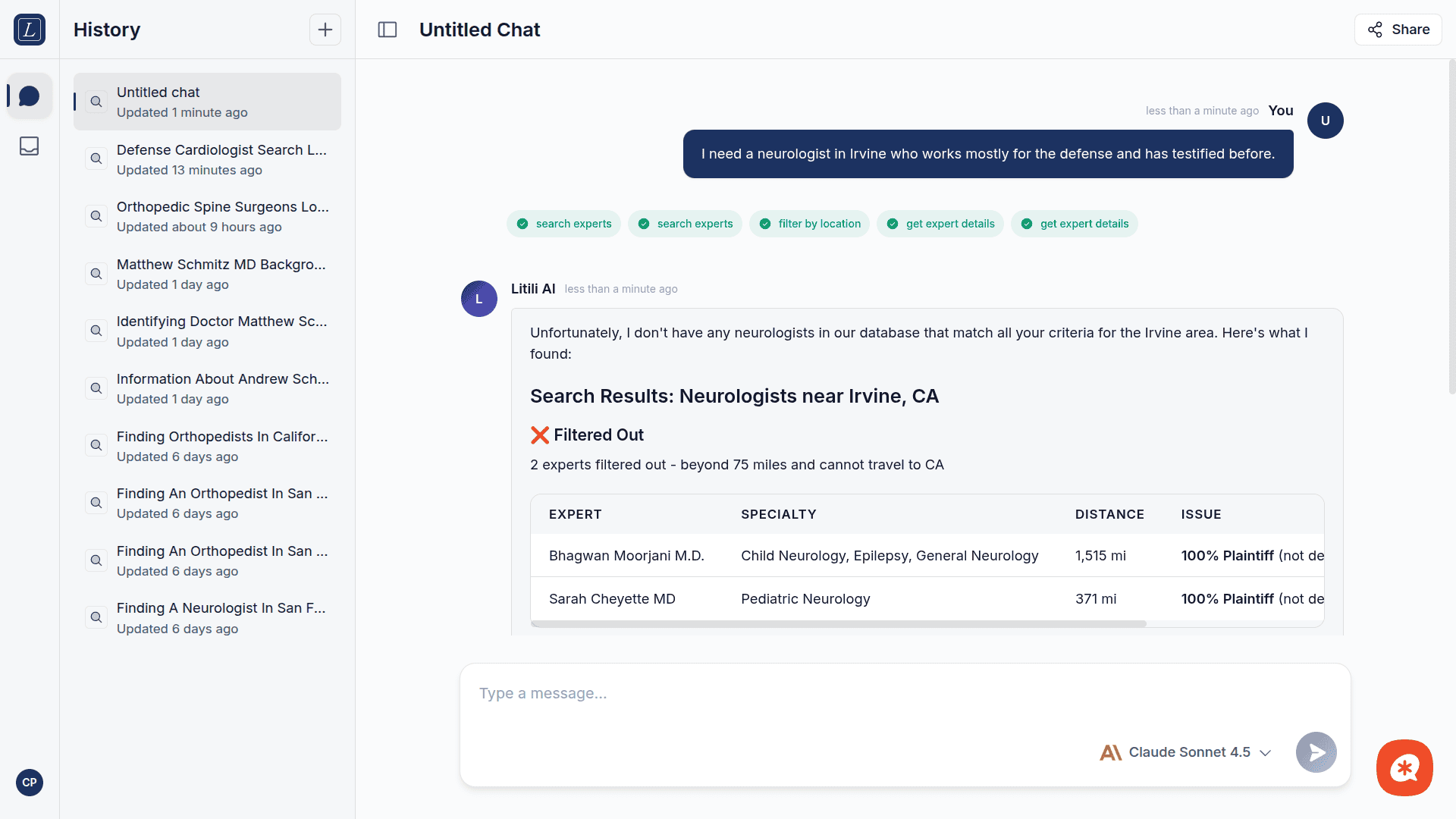
I need a neurologist in Irvine who works mostly for the defense and has testified before.
The AI will interpret your request, call the appropriate tools, and return structured results with explanations. If no conversation exists yet, one is created automatically when you send your first message.
What the AI can do
The assistant has access to specialized tools for expert matching:
Tool | Description |
|---|---|
Search Experts | Find experts by specialty, location, side preference, and more. Enforces the 75-mile rule automatically. |
Search Experts (Batch) | Run multiple expert searches in a single operation for complex queries. |
Filter by Location | Apply geographic filtering to narrow results by proximity. |
Check Availability | Verify whether an expert is currently available for engagement. |
Check Conflicts | Verify whether an expert has conflicts with specific plaintiffs, defendants, or law firms. |
Get Expert Details | Retrieve a full expert profile: credentials, experience, fees, CV availability, and testimony history. |
Model selection
The chat input includes a model selector in the toolbar. Models are grouped by provider:
Anthropic
Model | Speed | Best for |
|---|---|---|
Claude Haiku 4.5 | Fast | Quick queries and simple tasks |
Claude Sonnet 4.6 | Standard | Best balance of quality and speed (default) |
Claude Opus 4.6 | Slow | Complex analysis and deep reasoning |
OpenAI
Model | Speed | Best for |
|---|---|---|
GPT-5 Nano | Fast | Ultra-fast simple queries |
GPT-5 Mini | Fast | Everyday tasks |
GPT-5.2 Chat | Standard | Conversational tasks |
GPT-5.2 | Standard | Complex reasoning and analysis |
Perplexity (Research)
Model | Speed | Best for |
|---|---|---|
Sonar Deep Research | Slow | Comprehensive web research with citations |
Sonar Pro | Standard | Advanced web search with real-time data |
Sonar | Fast | Quick web research |
The model resets to the default when you switch conversations.
Extended Thinking
Some models support Extended Thinking, which lets the AI show its step-by-step reasoning before providing a final answer. Supported models:
Claude Opus 4.6
GPT-5.2
When you select a supported model, a thinking toggle appears at the bottom of the model dropdown. Thinking is auto-enabled for models that support it and auto-disabled otherwise.
During streaming, the AI's thinking process appears in a collapsible block above the response. You can expand or collapse it at any time.
Example prompts
Find me an orthopedic surgeon near El Segundo, California
I need a cardiologist within 20 miles of Irvine who has testified at least once, works 70%+ for plaintiff side, and is a LITILI exclusive
Check if Dr. Smith (expert ID: EXP-1234) has any conflicts with plaintiff Johnson & Johnson or defendant law firm Baker McKenzie
Show me the full profile for expert EXP-5678
Find experts similar to Dr. Martinez but closer to Houston
What are the latest trends in medical expert witness testimony for cardiology malpractice cases?
Switch to a Research model (Sonar Deep Research, Sonar Pro, or Sonar) for questions outside of the Litili database.
Tool call visibility
When the AI uses a tool, you'll see:
Tool call start — a card showing which tool is being called and the input parameters, with a "running" status indicator
Tool call update — the status changes to "completed" (or "error") and shows the output data (expert lists, profiles, conflict status)
AI interpretation — the assistant's summary and recommendations based on the tool results
While the AI is deciding which tools to use (before any tool call or content appears), a skeleton loader is shown to indicate activity.
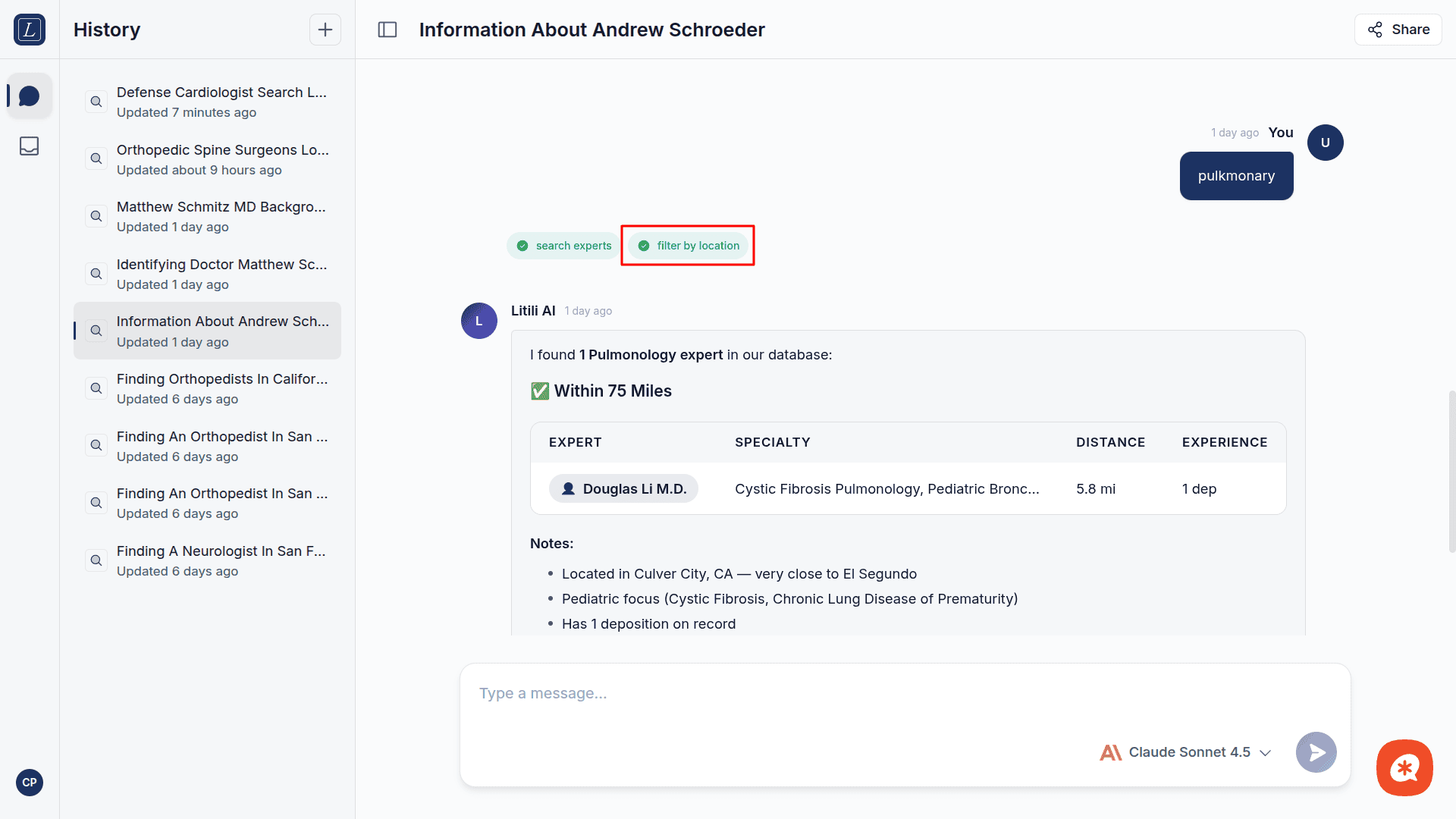
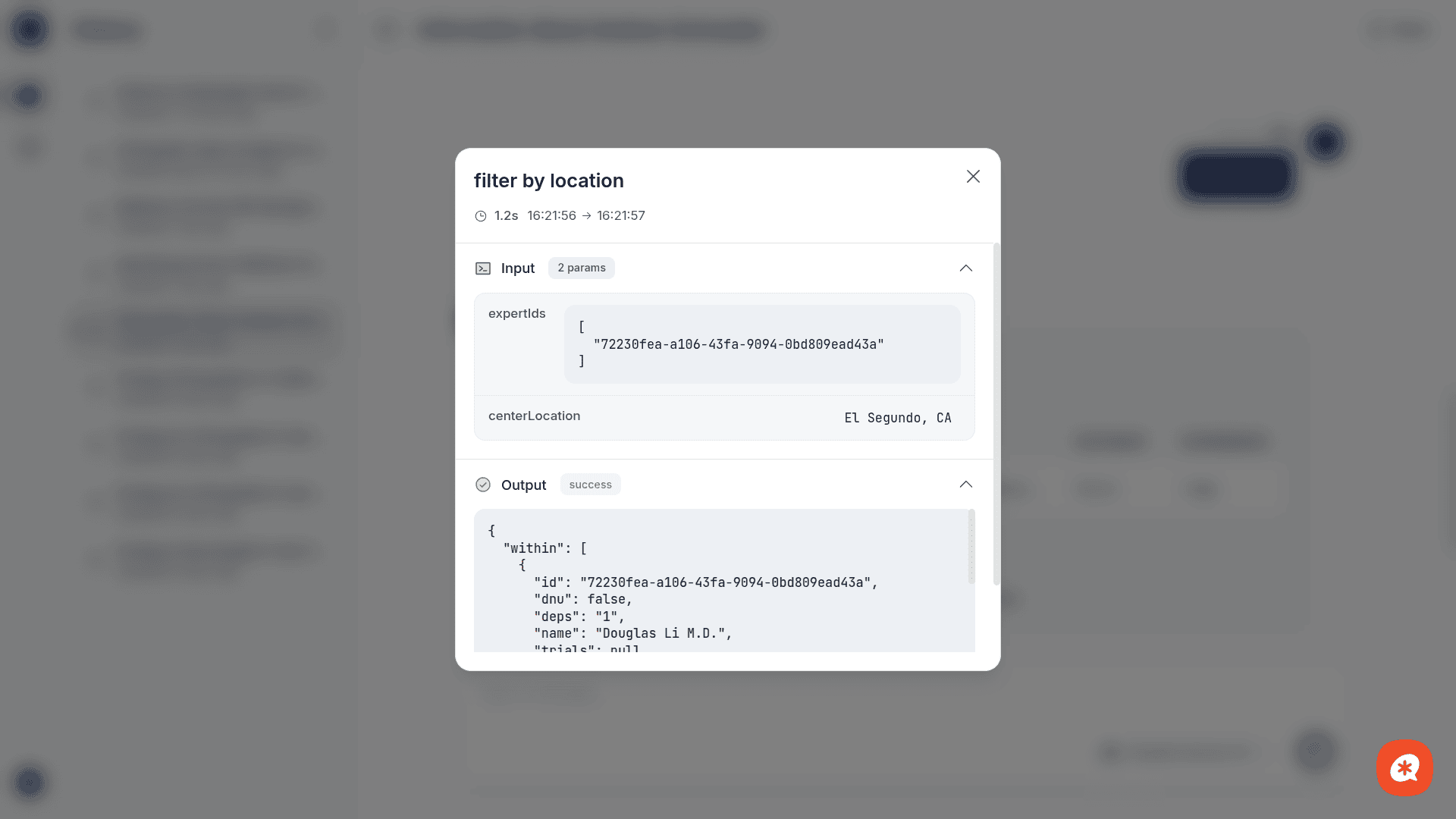
This transparency lets you verify the AI's reasoning and the underlying data.
Conversations
Sidebar
The left sidebar shows your conversation history, sorted by most recent activity. Each entry displays:
The conversation title (auto-generated or "Untitled chat")
A relative timestamp ("Updated 2 hours ago")
Toggle the sidebar with the sidebar button in the header. Its visibility persists across sessions.
Managing conversations
New chat — Click the + button in the sidebar header, or the conversation resets when you navigate away from an active conversation
Switch — Click any conversation in the sidebar to load it
Delete — Hover over a conversation and click the trash icon that appears
Context continuity
Context carries across messages within a conversation. You can say "now check that expert for conflicts" after a search without re-specifying who you mean. Conversations are stored server-side and persist across sessions.
Stopping a response
While a response is streaming, the send button transforms into a stop button (red circle). Click it to cancel generation immediately.
Guardrails
The AI operates within defined safety boundaries:
Guardrail | Limit | Purpose |
|---|---|---|
Max iterations | 10 | Prevents infinite tool-calling loops |
Max tool calls per iteration | 5 | Limits parallel tool execution per loop step |
Response timeout | 60 seconds | Caps time for a single LLM response |
Tool timeout | 30 seconds | Caps time for any single tool execution |
Total timeout | 5 minutes | Hard ceiling per user message |
Cost per request | $0.50 | Prevents runaway token usage |
If a guardrail is hit, you'll see a clear error message. Simply rephrase or simplify your request.
Error handling
The chat provides contextual error messages based on the type of failure:
Status | Message |
|---|---|
401 | Authentication failed — check API configuration |
403 | Access denied — insufficient permissions |
429 | Rate limit exceeded — try again later |
408 | Request timed out |
500–504, 529 | AI service temporarily unavailable (with auto-retry) |
Transient errors (5xx, timeouts) are automatically retried by the backend gateway. You'll see a warning toast showing the retry attempt count.